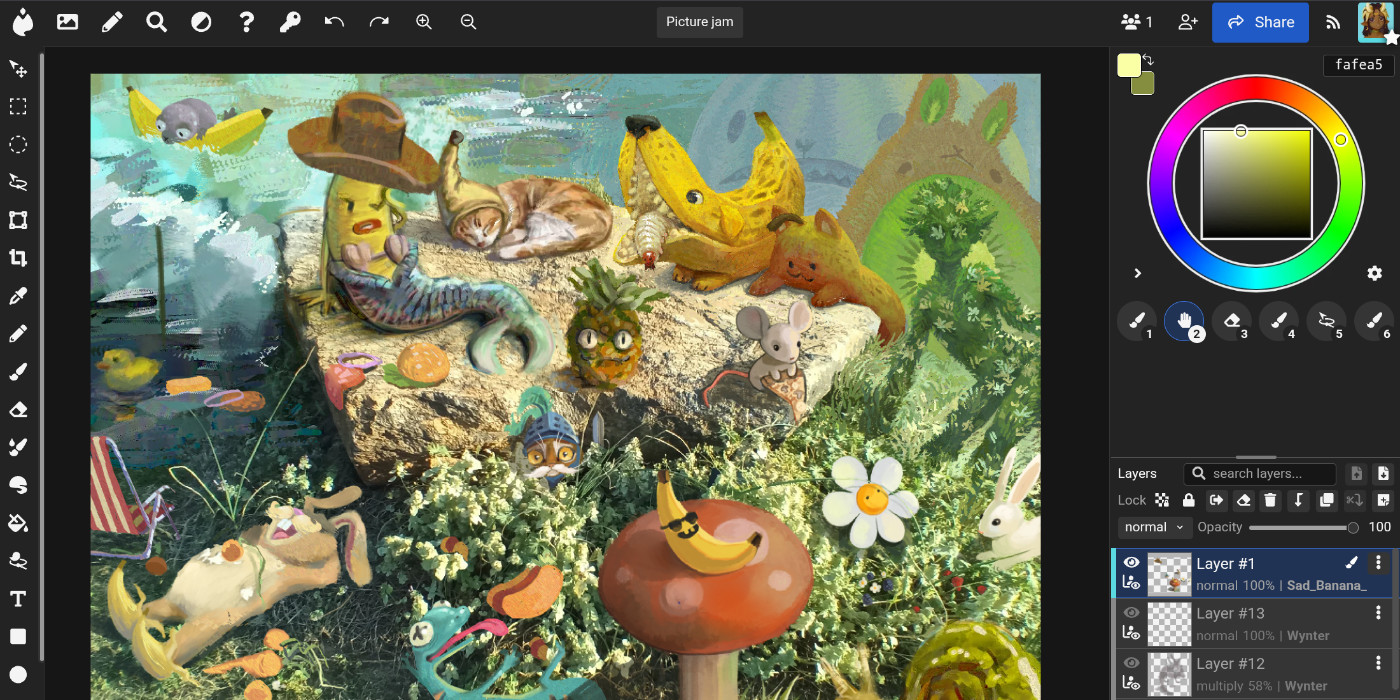
One of the most exciting and rewarding ways to engage with digital art is drawing collaboratively. Wacom is so excited to partner with Magma, the best online service for collaborative art. We’ve even bundled a free three-month trial of Magma Blaze with a bunch of Wacom drawing tablets: the One by Wacom, Wacom Intuos, Wacom One, Wacom Movink, and Wacom MovinkPads!
If you want to get started with collaborative drawing in Magma, artist Sad_Banana_ has you covered. They wrote this comprehensive tutorial for getting started with two of the primary Magma use cases: Art Jams and Shared Canvases. This tutorial focuses on the Wacom MovinkPad 11 experience, but everything should be similar no matter what Wacom product you use to create your digital art! Note: the content of guest blog posts does not necessarily reflect the opinions of Wacom.
Why should I give Magma a try?
If you’ve used Photoshop, Clip Studio Paint, or even if you’re brand new to digital art software, Magma is a very approachable drawing application that has the added bonus of being able to draw with other artists and friends in real time! Together you can paint, draw and sketch with each other in a way that provides for a lot of fun interactions, or really cool collaborative projects.
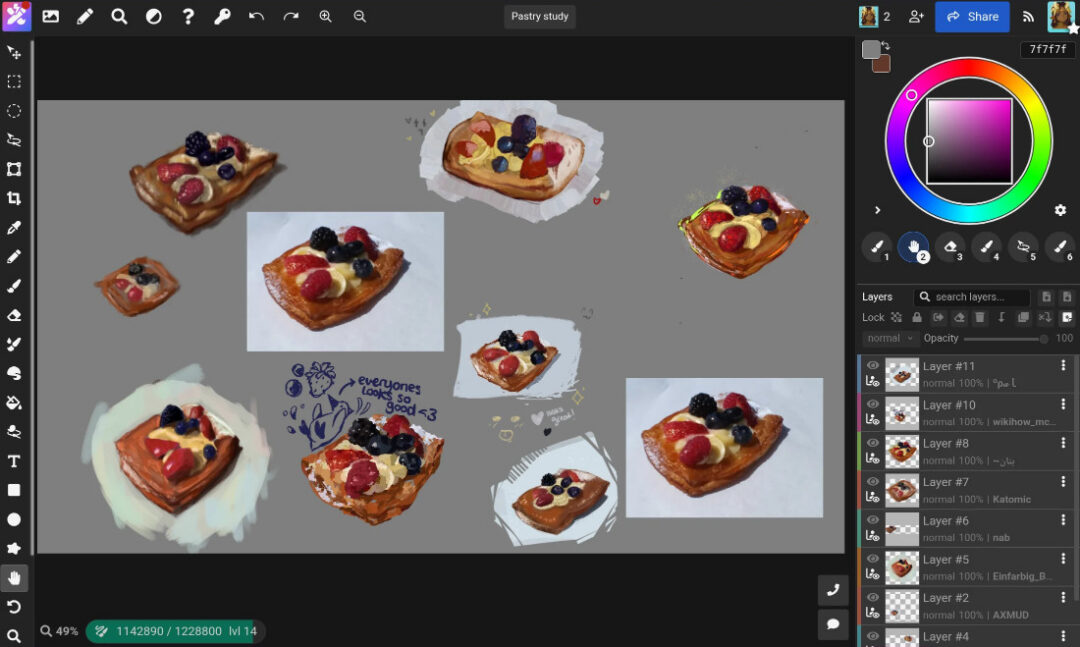
Magma also incorporates tools that allow creative freedom, with extensive customization of brushes, a liquify tool, blending brush tool, and a few others. Magma has been my go-to drawing software for over two years, and it does an amazing job balancing simplicity and more advanced features. Magma responds beautifully with pressure sensitivity right out of the gate, making it a great application for Wacom users. If the pressure sensitivity is not to your liking, though, the software also provides options for adjusting pressure curves to accommodate your drawing style.
There is no need to install an app to start drawing; Magma is browser-based! All you have to do is share a URL with other people to connect and draw together. Everything you create with Magma will be stored in your Artdesk by default, with options to export the canvas as a PNG, JPEG, PSD file, or separate layer images to be saved locally. Your canvases and Art Jams are associated with your account and you will have access to them. The Magma Blaze plan – a free trial of which is included with a bunch of Wacom purchases including Wacom MovinkPad 11 – also gives you more Artdesk storage space so you can keep creating. Blaze members also get an ad-free experience, can make custom brush presets, and can use a reference window to import reference photos.
How to draw with others on Magma: Art Jams and Shared Canvases
First things first, you’ll need to create a Magma account! If you haven’t done that already, go ahead and do that, and then come back to this tutorial.
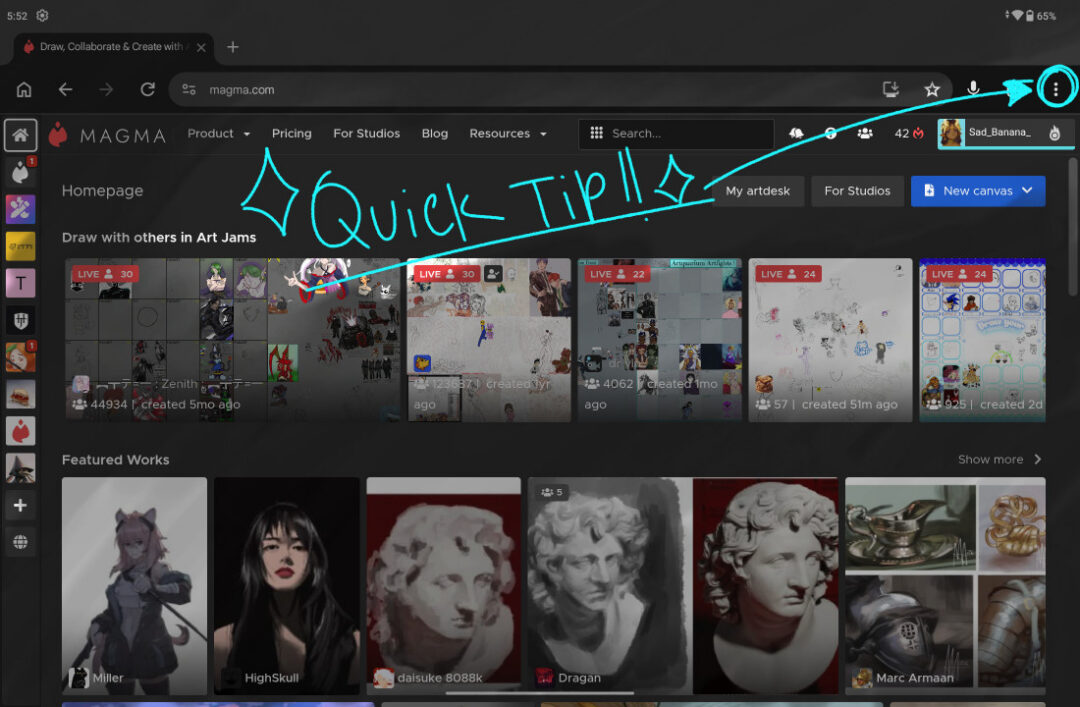
Quick Tip #1: Add Magma to Home Screen on MovinkPad 11
I’m using the Google Chrome browser that comes natively installed on the Wacom MovinkPad 11. You can claim more screen real estate by going to the hamburger button at the top right of the screen and selecting “Add to Home screen.”
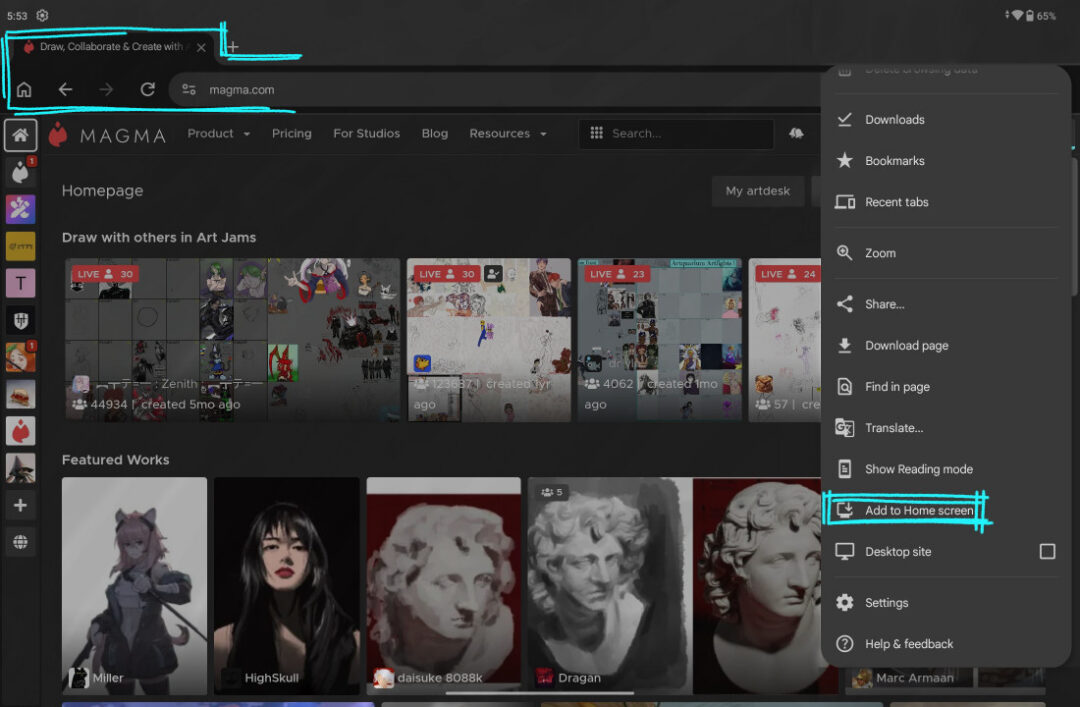
When launching Magma from this shortcut, it will hide the search bar and browser tabs to allow more drawing space!
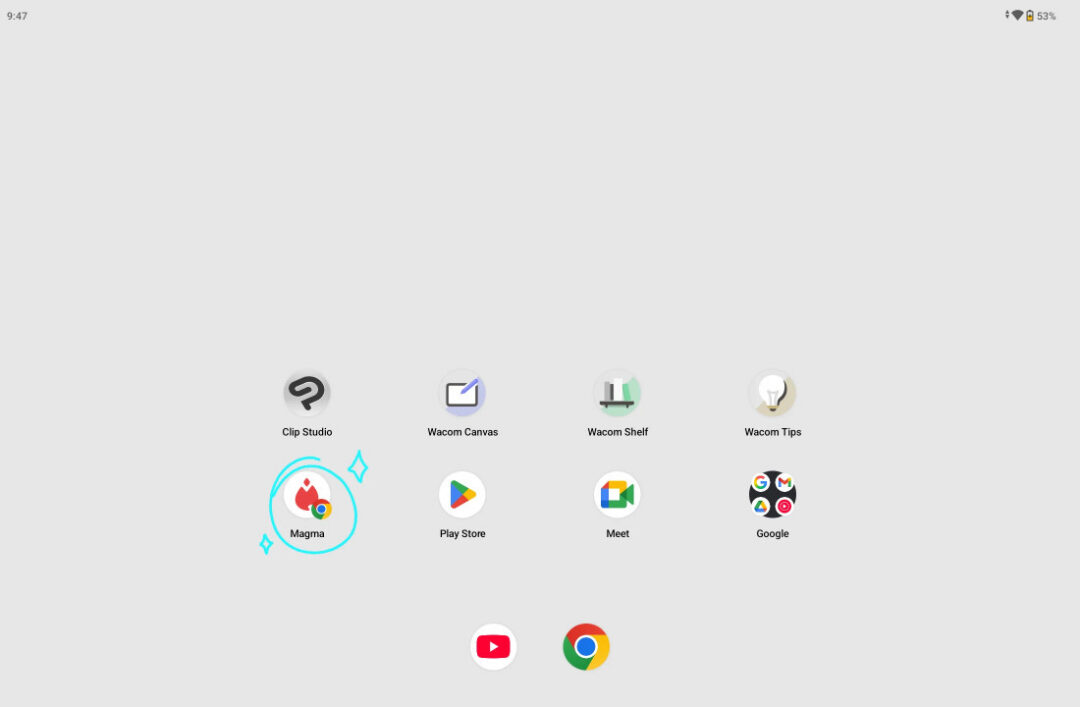
Now we’re all set to start considering what canvas type we’ll make.
There are two approaches to start drawing with friends or other artists on magma: Art jams and Shared Canvases.
First, Decide: Should I do an Art Jam or a Shared Canvas?
You will need to decide if you want to host an Art Jam or a Shared Canvas.
Art Jams are site-hosted, public canvases that, by default, let any Magma user join. Art Jams are listed in the Art Jams tab, with the most active or popular ones listed first. It’s a great opportunity to meet new artists and see unique art styles and take on the same subject.
Shared Canvases are more controlled, because they are not public – you need to share the canvas link or invite users to them directly. Shared Canvases are also located in your Artdesk and will use your Artdesk storage.
To get started, Magma will load you into the homepage when you are logged in. Here you will see featured artworks, a few live Art Jams hosted by other users, and some options to go to your art desk or to create a new canvas.
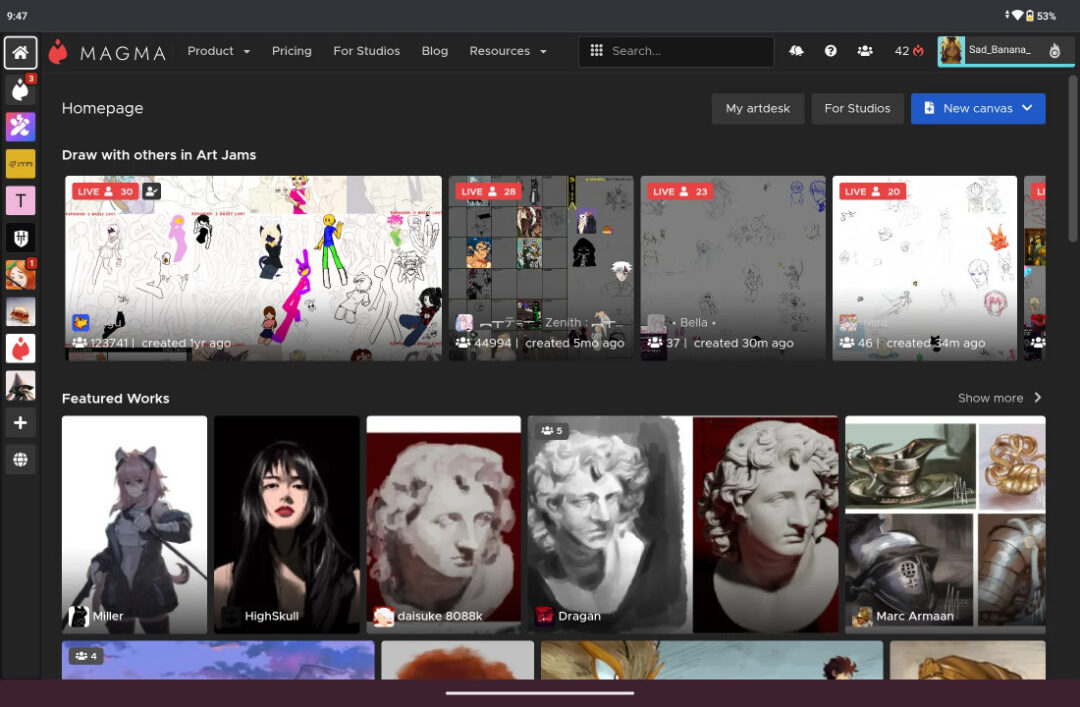
How to set up an Art Jam on Magma
Art Jams are a great way to meet new artists to draw with if you don’t have anyone to join you!
Step 1: Start New Art Jam
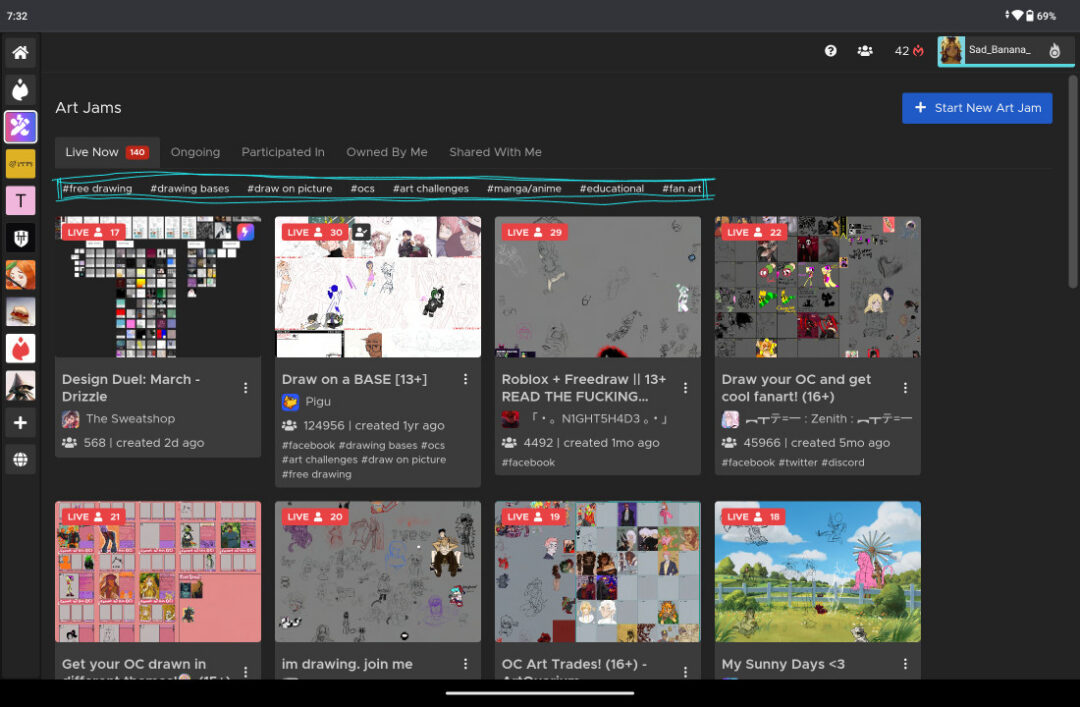
To set one up, you’ll need to go to the Art Jams tab. Here, you will see a bigger grid layout of the current Art Jams available, but to create your own, you tap on the big blue button that says “Start New Art Jam.”
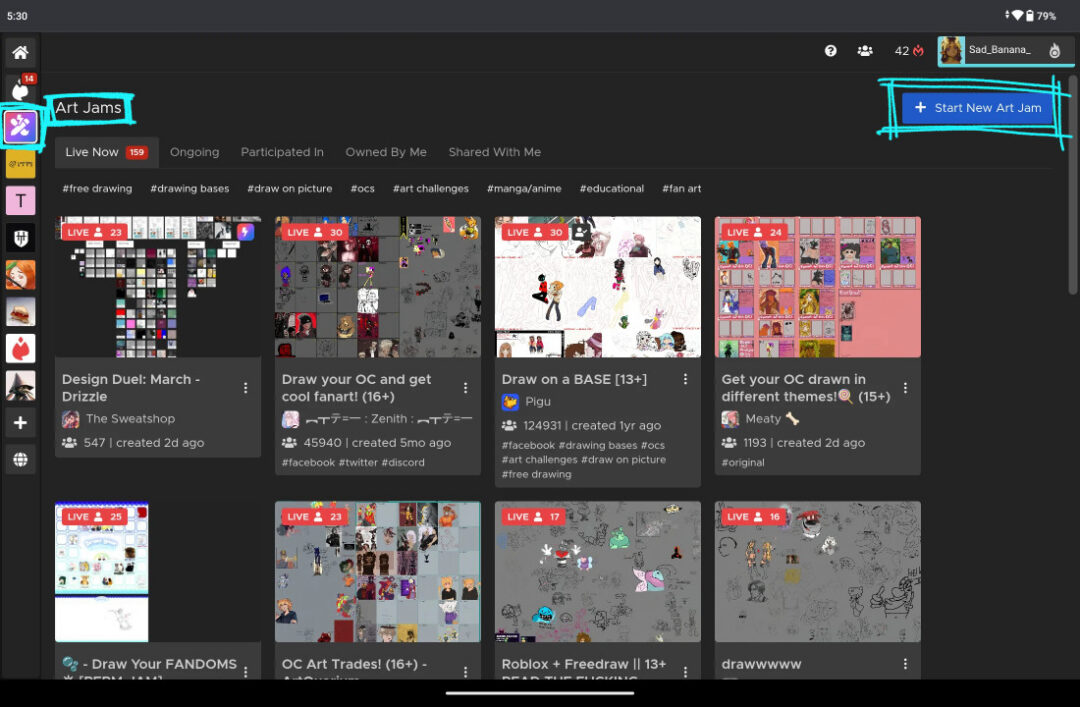
Once you do that, you’ll see a set up dialogue box to input information about your Art Jam.
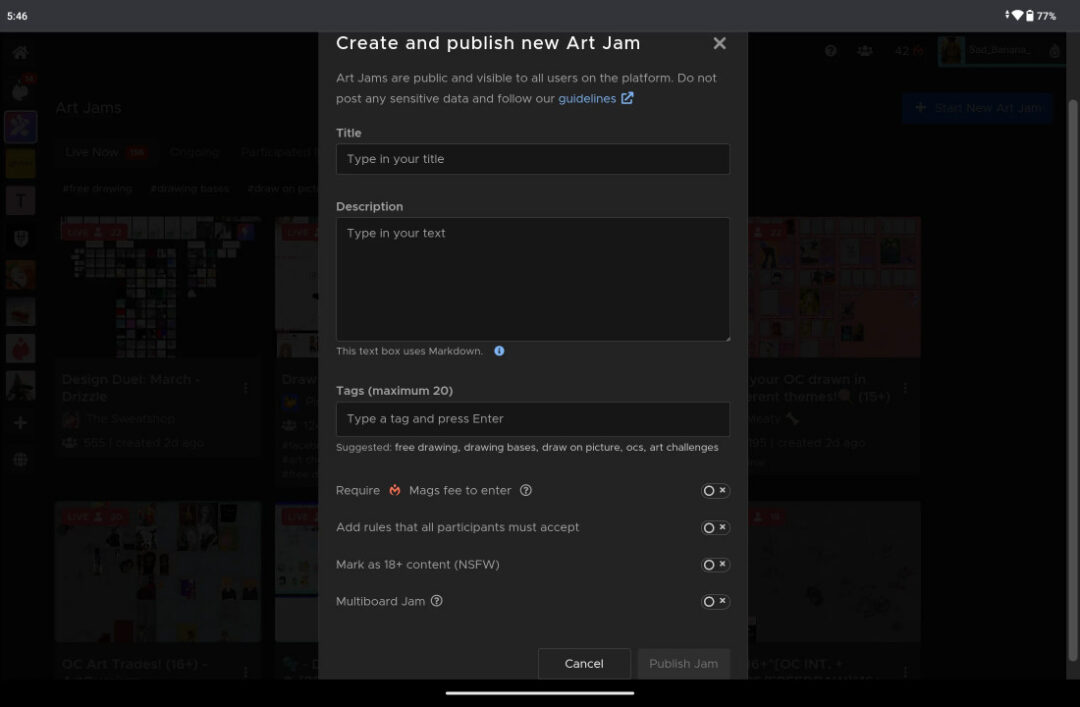
In this example, I will be hosting my own Art Jam featuring some reference photos I’ve taken with the Wacom MovinkPad 11.
Step 2: Art Jam Title, Description, and Tags
You will create a Title for your Jam, and there is a section for you to write a Description for it as well. I typically use this section to write out any guidelines on how to participate in the Art Jam in this section.
The Tags section provides another way for the Art Jams to be organized, so you can add some tags here to help people find your Jam. If we go back to the Art Jams page, you can see the tags listed above the list of Jams and thumbnails. You can click on the tags to list all the jams in that specific category.
Step 3: Setting Art Jam rules
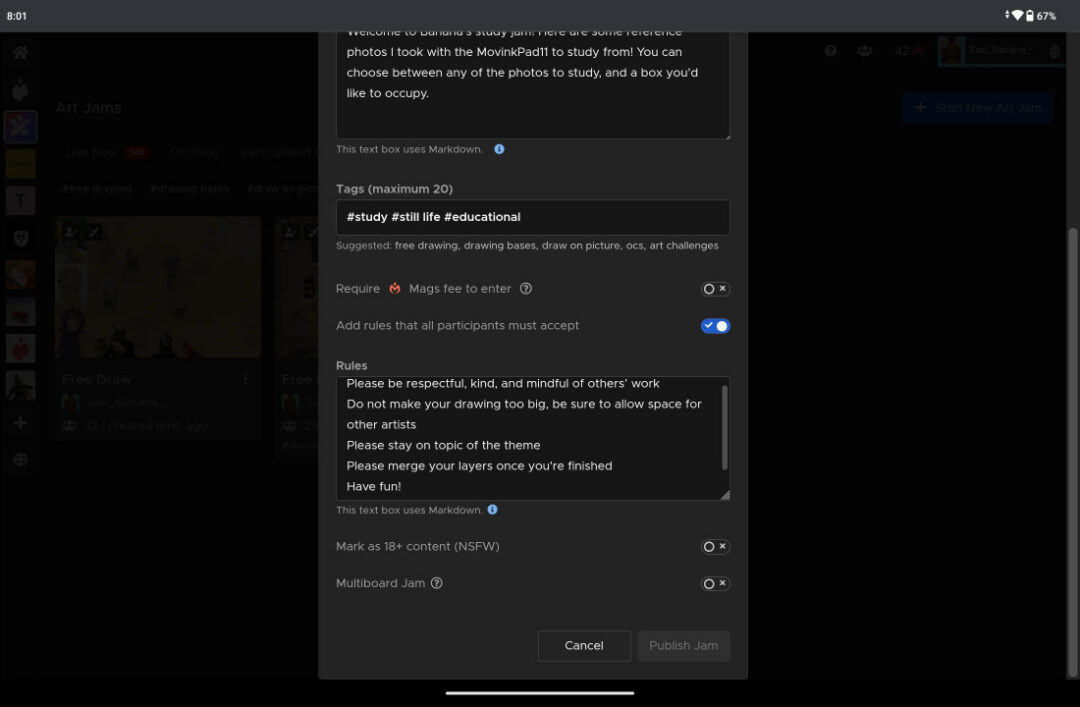
I recommend enabling the “Add rules that all participants must accept” option. This will pop up an extra dialogue box when users try to join the Art Jam, and they will have to agree to the rules before they formally join the Art Jam canvas. Magma is a well-moderated platform, but there will always be some stinkers in the bunch that will try to ruin fun for others, so it’s always a good idea to set some ground rules on what behaviors are not tolerated in your art jams.
I encourage participants to review the guidelines and sitewide rules. These are also expected to be followed with any Art Jam or canvas you host or are a part of. If there is anything you find suspicious, I would encourage you to report it to the Magma team!
Quick Tip #2: Description Box markdown
Another quick tip: the Art Jam description box and rules box supports markdown syntax! If you’re interested, you can follow the Magma Team’s guide here.
Once everything looks good to you, you can now publish your Art Jam! You will be taken to your Art Jam canvas after you hit the Publish button.
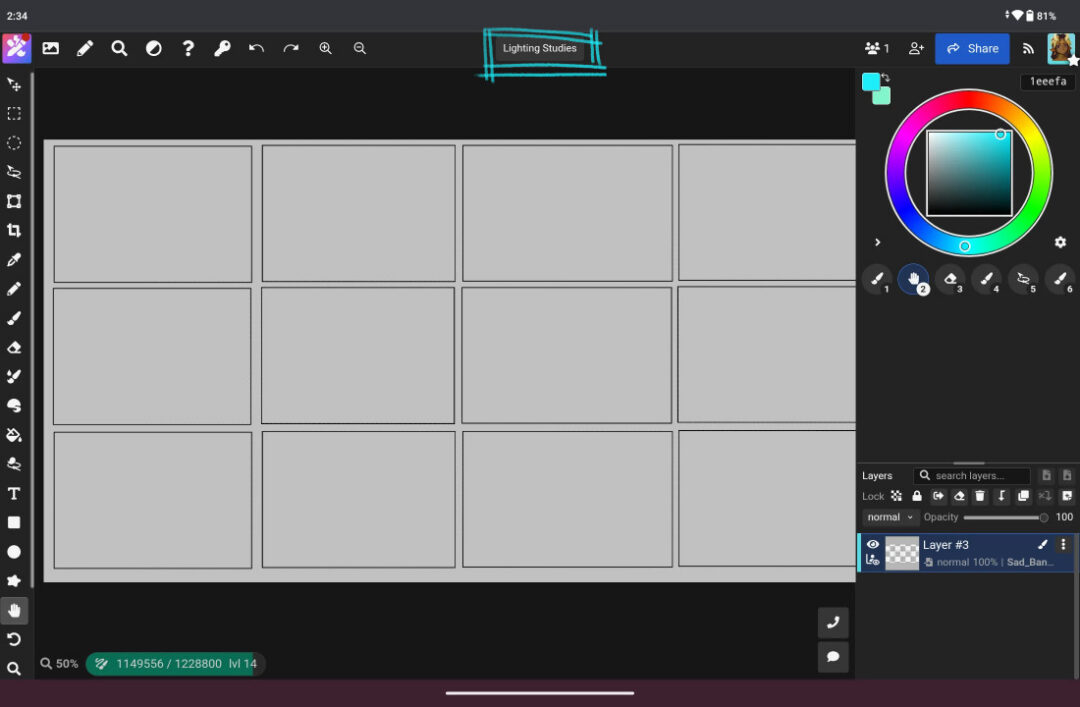
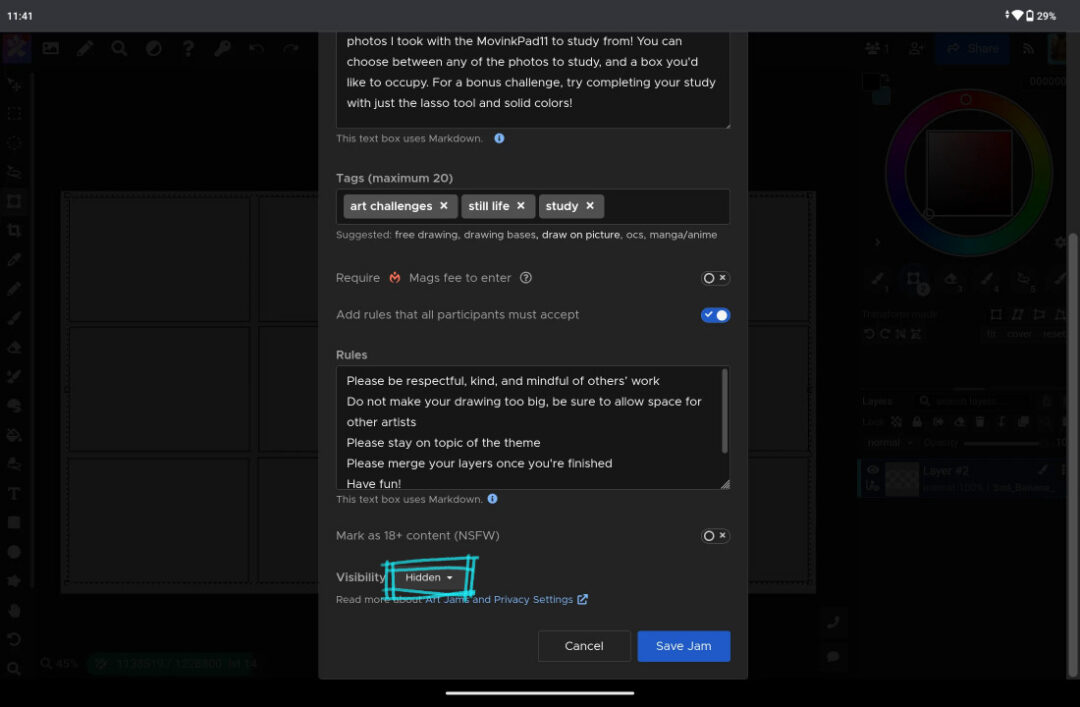
If you need some time to set everything up before going “live” and listing your jam on the Art Jam page, you can unlist the art jam by clicking on the canvas name found at the top middle of the screen, clicking Edit, then changing the visibility to “Hidden.” You can also re-list your art jam by going through the same process.
Quick Tip #3: Reference photos
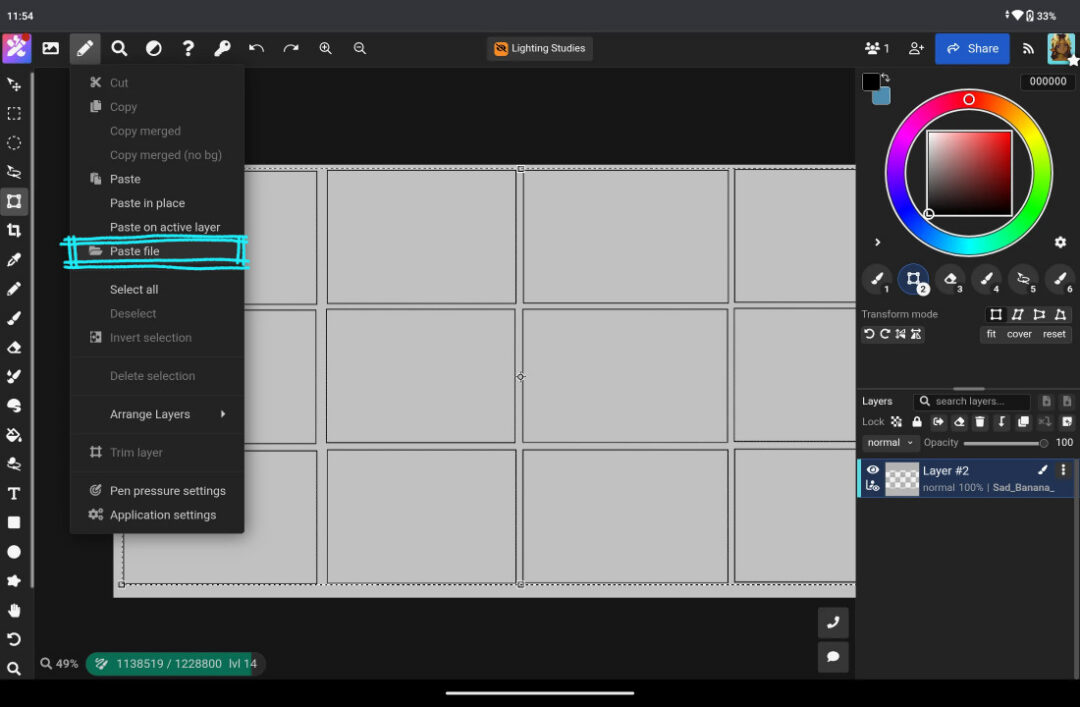
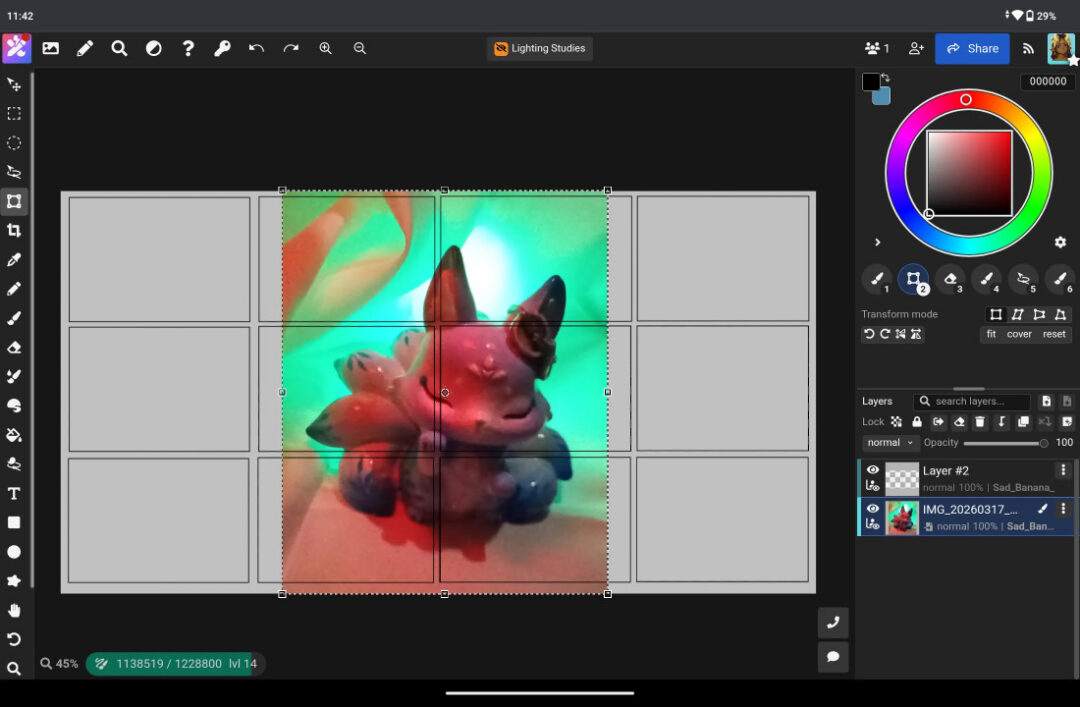
If there are some photos you took, or a cool reference you found online, you can go to the Pen icon and then “paste file.” This will add the imported photo into its own separate layer that you can move, transform, and/or distort if you need with the Move tool. Since I took my own study reference photos with my MovinkPad 11, I will be importing them from my photo gallery from the device.
Step 4: Art Jam Admin Options and Roles
Before you start drawing, I will also recommend you look at the Admin Options. These will be accessed via the “Key” icon in the top left menu.
Here, you can change permissions of the three different roles a user can have in Magma canvases. Since you are the creator of the Art Jam, you will be in the “Admin” role by default. You will have to manually select which users you would like to move to the “Approved” role once they join the Art Jam canvas. All other users are automatically assigned to the “All” role when they join the Art Jam.
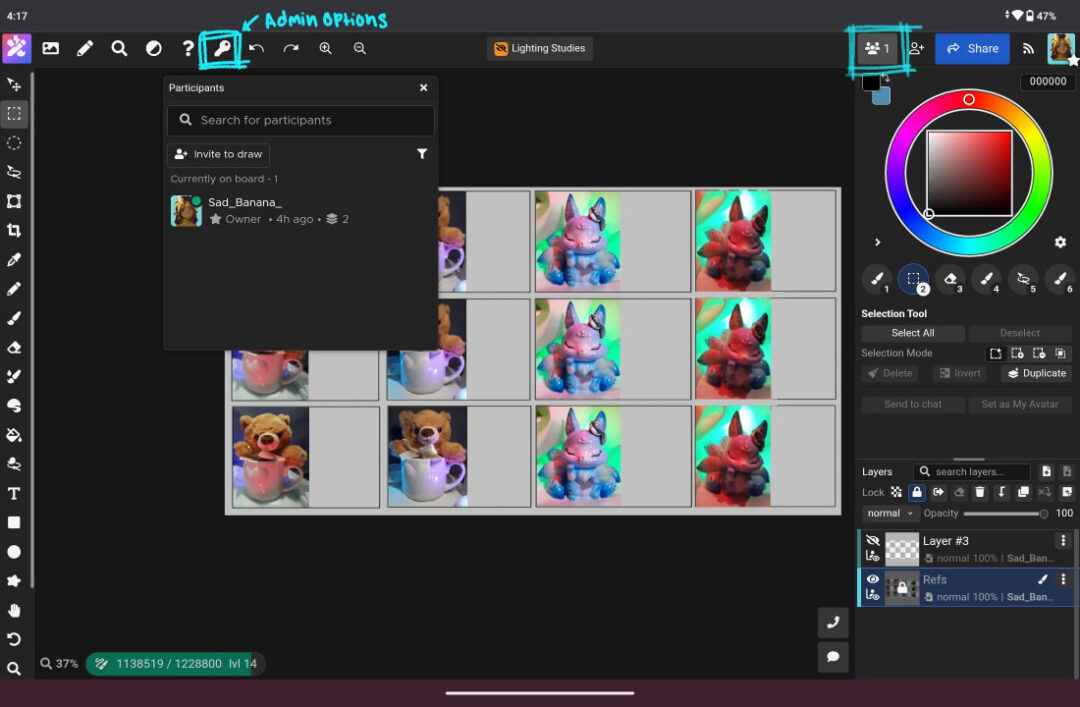
To assign roles, find the Active Users section that is in the top right of the screen. It’s to the left of the blue Share button. Once you click on the thumbnail of the profile pictures of active users on the canvas, it will pop out more information on current users, and users who previously joined but are currently offline in the canvas. If you click on the vertical three dots that are found to the right of the user’s name, it will open another menu that lets you change which role they currently have along with a few other options.
I would recommend giving the “Approved” users permission to:
- Paint bucket
- Re-order layers
- Paste
Some options I would recommend giving only “Admin” users permission to edit:
- Drawing settings
- Resize canvas
- Create comments
I tend to use these settings so it leaves a little less room for trolling and griefing. While it is not a common occurrence, Art Jams are public and anyone can join, so I always tend to take some precautions for those reasons. Magma has a wonderful resource on how to handle a user who may not be compliant with the rules that you’ve set, though, and it can be found here.
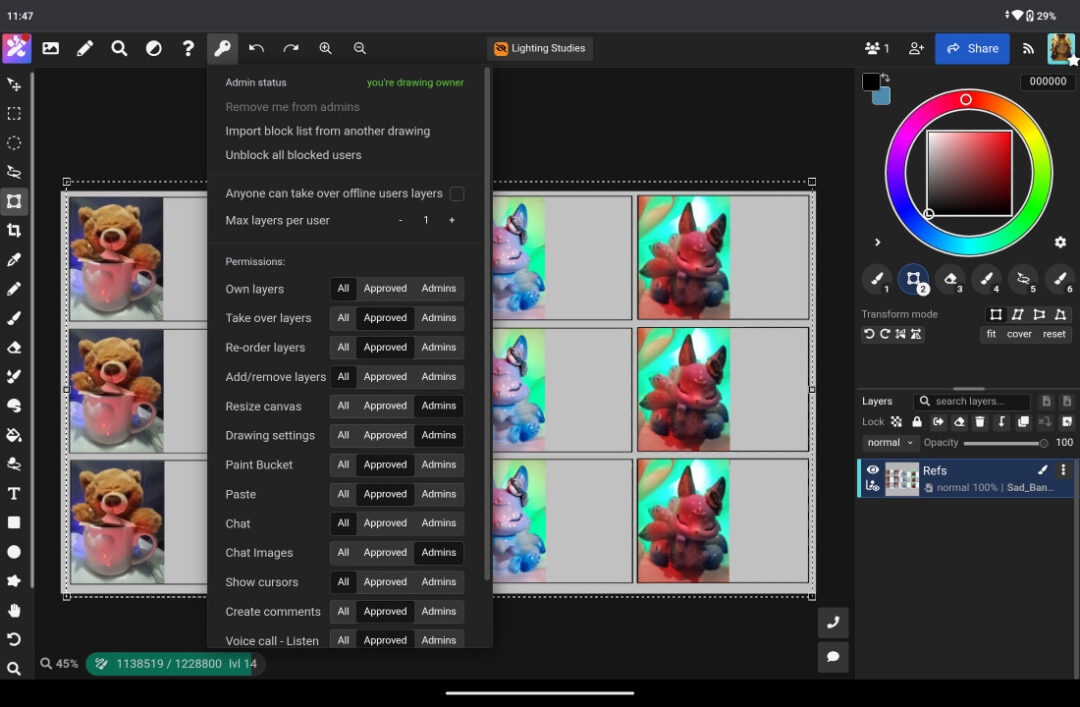
Starting from the top of the Admin Options list, I recommend keeping the “Anyone can take over offline users layers” box unchecked. This option is off by default, but when enabled, it allows any user to take over a layer of another user who is no longer actively on the canvas. This could cause some confusion if there is a user who stepped away for a few minutes and came back only to discover their art was accidentally deleted by someone else.
There is also an option to limit the number of layers each user can have in total. If there are too many active users or too many layers, it can cause unfortunate amounts of lag depending on your device. This is especially true for all-in-one drawing pads like Wacom MovinkPad 11, as they do not have the same processing power and memory allocation as a desktop computer might. In that case, I go ahead and limit them from the setup options. I recommend limiting each user to only one layer depending on how many users are in the Art Jam, or what the goal of the jam is. This of course is also subjective, and for my study jam, one layer is reasonable.
Step 5: Open your Art Jam to the public
With the admin settings and set up completed, it is now time to reopen the Art Jam to be joinable.
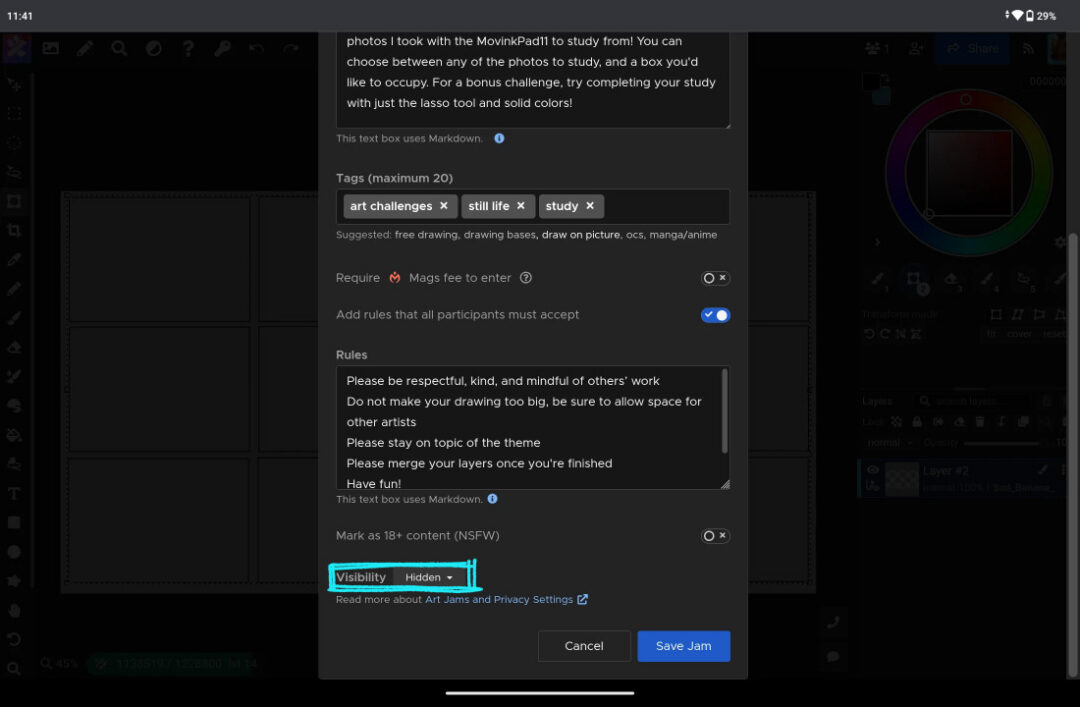
Once you ensure your Art Jam is set to “public” visibility, users will join in your jam via the Art Jam page! If you want to invite specific users you already know, or need to share a URL with someone so they can join, keep reading ahead. I will be going over shared private canvases, and the process for that is pretty similar for both Shared Canvases and Art Jams.
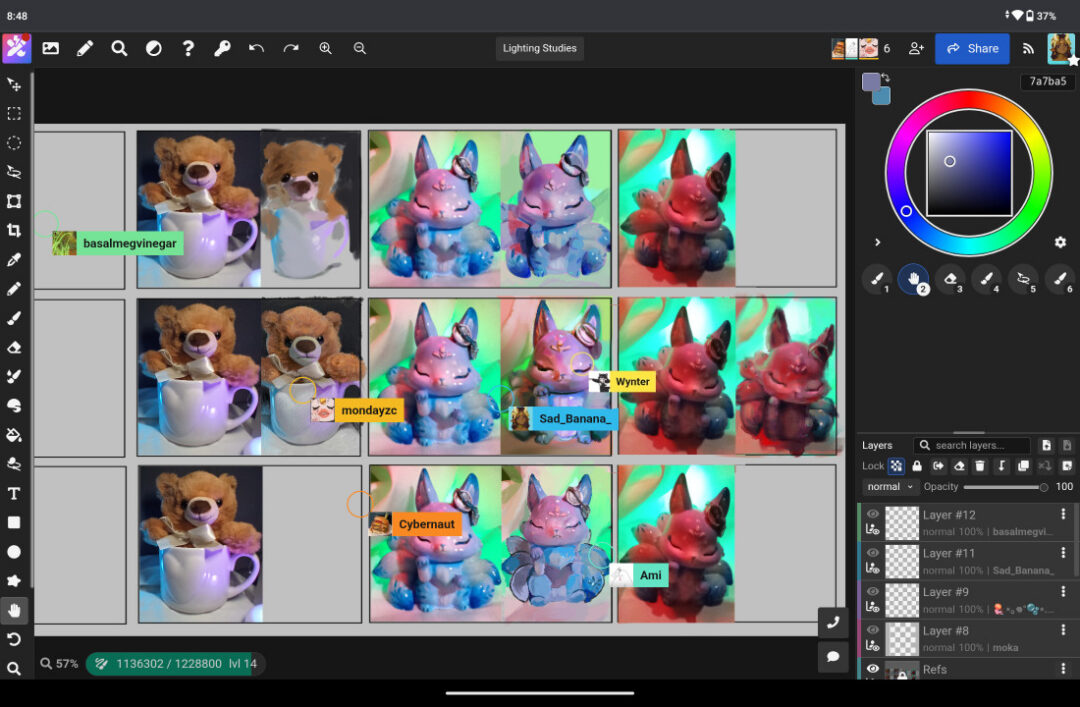
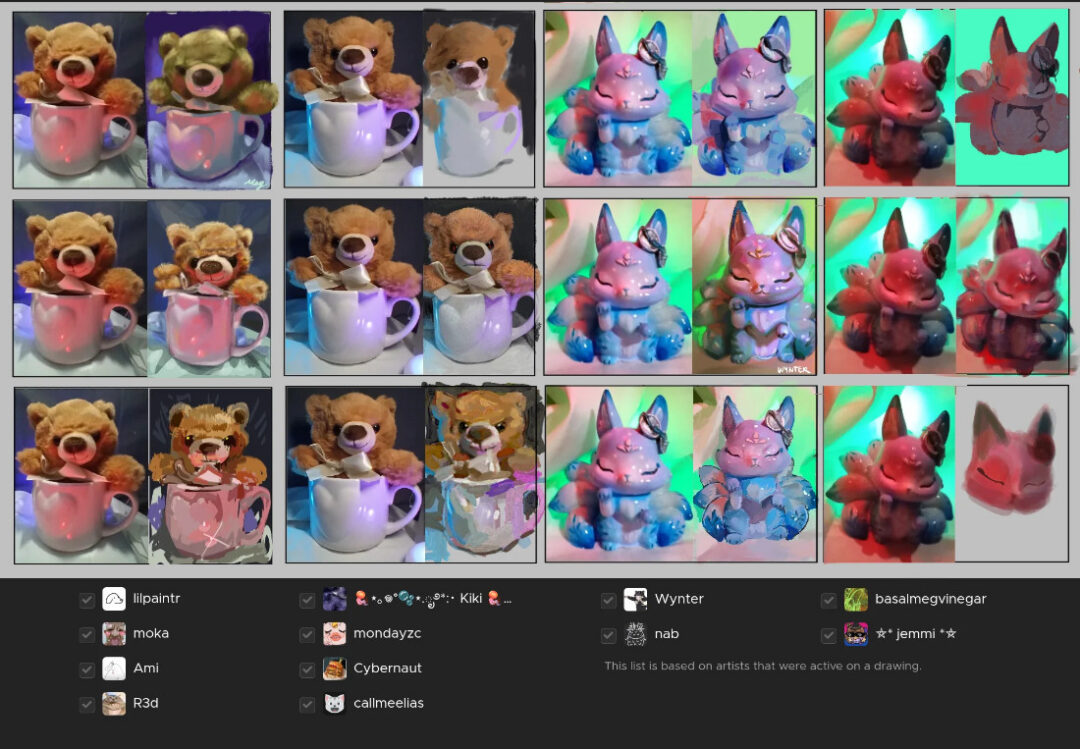
Here’s the finished study canvas from my Art Jam; everyone did an amazing job! It’s fun to see everyone’s different interpretations of the same reference.
How to set up a Shared Private Canvas in Magma
Privately Shared Canvases are great for gathering a couple of friends to draw with a specific theme or objective in mind. You can set up a Shared Canvas from the home screen using the “New canvas” button or by visiting your Artdesk.
Step 1: Create a New Canvas from your Artdesk
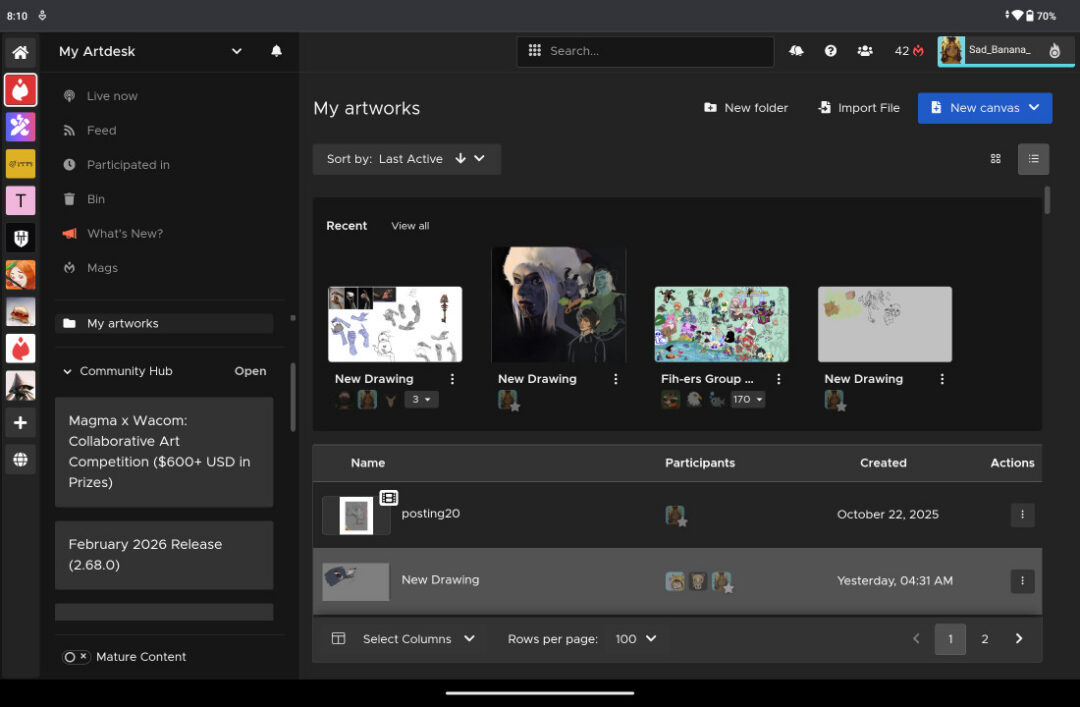
You can go directly to your Artdesk by either clicking on the Magma logo, or by visiting the home page and clicking the “My Art Desk” button in the top right. There will be a blue button that says “New canvas.”
Step 2: Set up your Shared Canvas
Clicking “New canvas” will give you options and some canvas size presets to choose from. Since it’s a more controlled and smaller environment, we can get away with choosing a slightly higher resolution. However, for this Shared Canvas, I will be uploading another photo I took on a walk with the MovinkPad 11 by using the “import file” option.
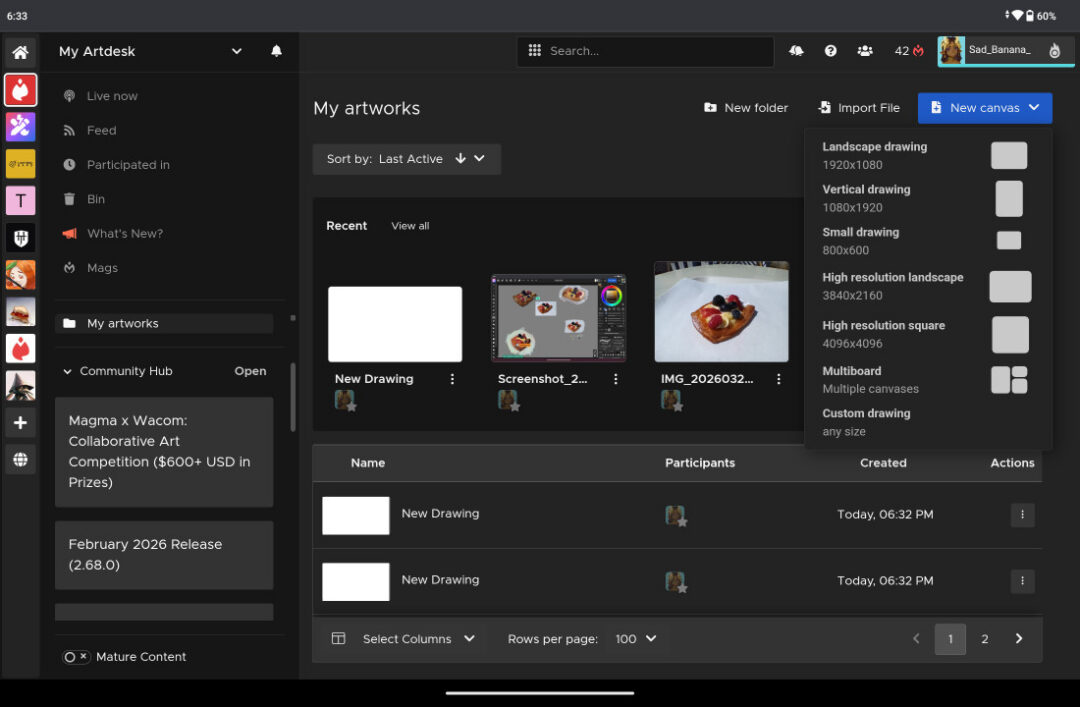
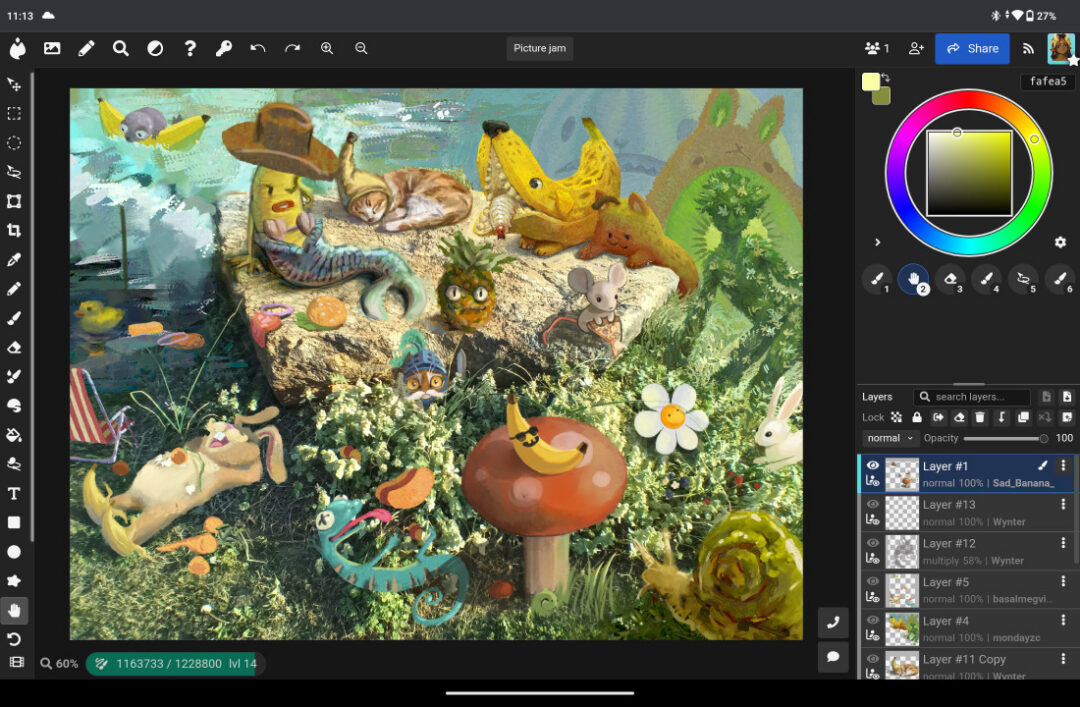
Once you choose a preset, or import your photo, the canvas will look pretty similar to an Art Jam. All of the functions are the same as earlier. I thought this rock was a prime subject for an imaginative doodling session, and I went ahead and imported it to start a new canvas.
Step 3: Invite friends to your Shared Canvas
It’s a little quiet right now, so let’s invite some friends to draw with us! If you want, you can use your same admin settings that you use for Art Jams, but ideally since this will be a curated canvas that you’re directly inviting other users to, you might not need that much moderation in the canvas.
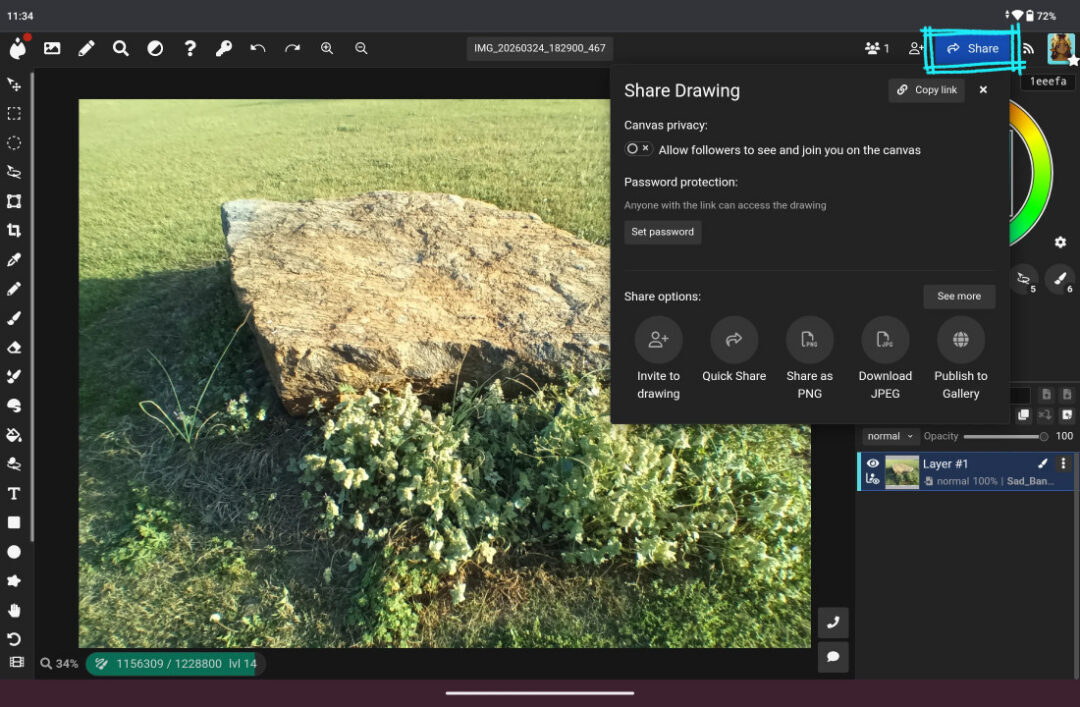
In the top right menu, there should be another blue Share button. This will let you invite users to the canvas internally through Magma, or copy the link to your clipboard. Personally, I like to invite users to join me in the canvas by sharing the URL!
If you want to invite users that you’ve recently drawn with in Magma, or some of your top followers, you can also invite people directly through the Magma platform by clicking “Invite to Drawing.”
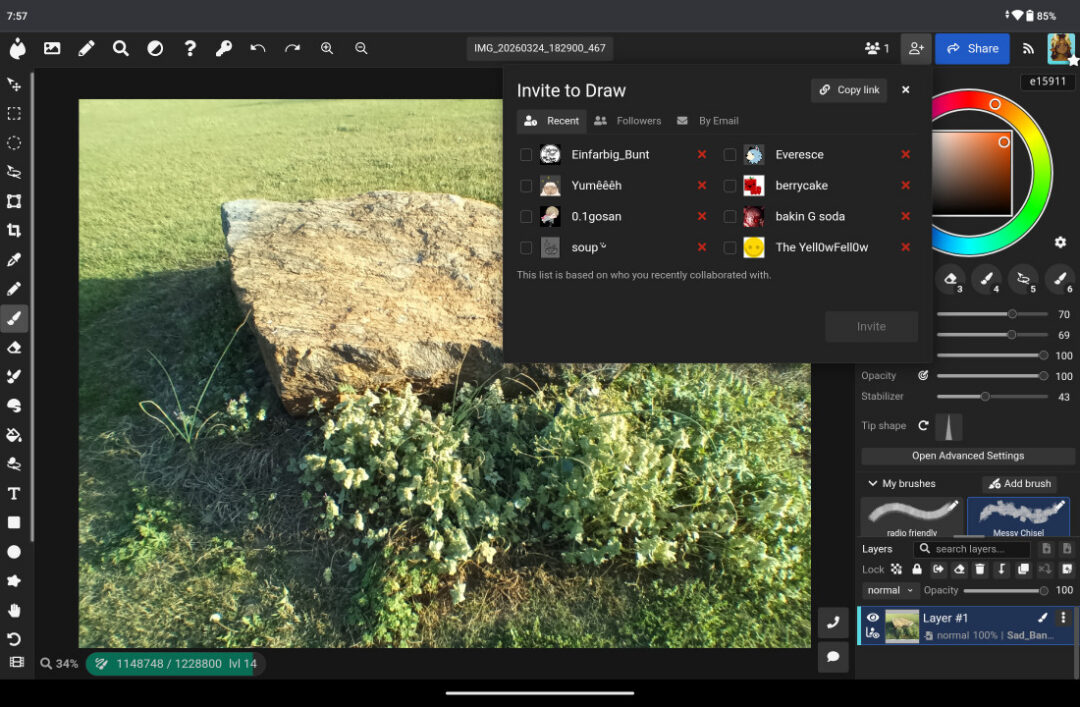
This will bring up another box and there are a couple of categories to choose from. The Recent tab will populate with users you’ve drawn with lately in other Art Jams. The Followers tab will populate with a preference of showing your most interactive followers.
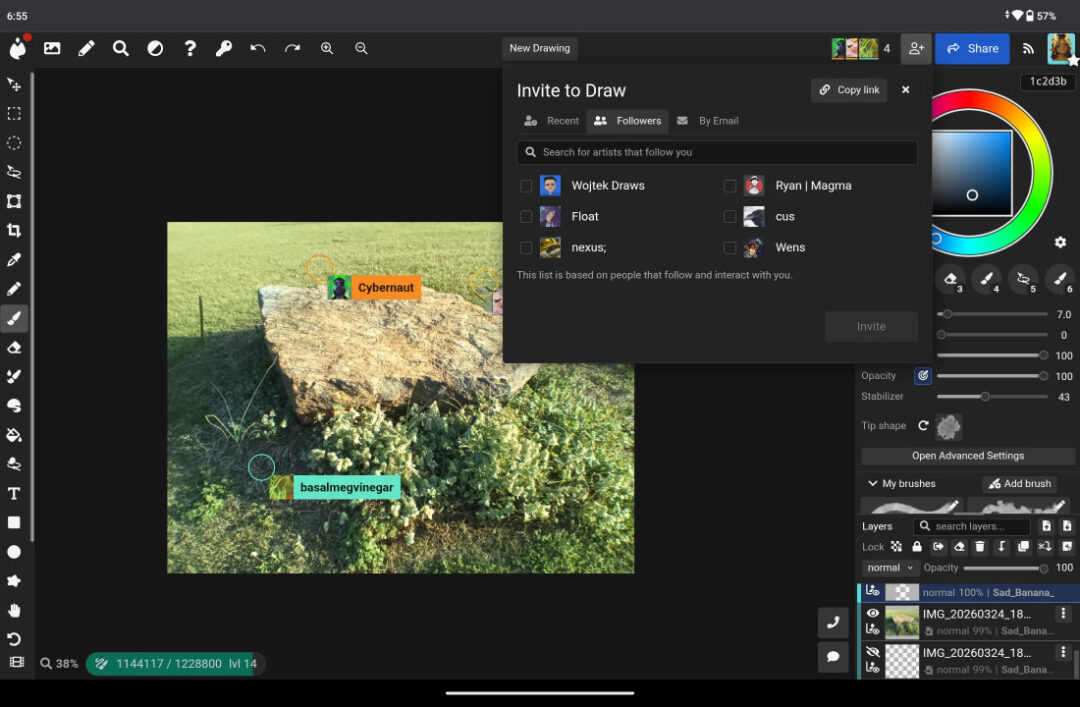
There is also an option to invite other users via email. Once you add their email address in the address bar, you can click the Add Email button. It will add each email address you add into a list format. When you’re all done adding recipients, hit the Invite button.
Step 4: Start drawing together in your Shared Canvas
Once your friends and contacts have joined you, you’re all set to start collaborating and drawing together! Here’s what my friends and I created based on the reference photo I added to the Shared Canvas. Needless to say, I had a lot of fun and we all were inspired by each other!
These two examples are just the tip of the iceberg of what you can host and make with others. I say go out there and explore what you can create with others! If there are any other questions you may have about using Magma, I would recommend joining the Discord server, or checking out the Magma guide resource here.