Many of us only think about software drivers when we get a new device – a printer, for example, or maybe a new Wacom pen display or pen tablet – and we have to download drivers in order to use it. Or one of our devices or peripherals isn’t functioning properly, so we have to download or update the drivers in order to troubleshoot.
But there’s actually a lot more to drivers than that, especially when it comes to Wacom devices, and not all drivers are created the same. This article will explain what drivers are – especially Wacom tablet drivers – what they do, and why Wacom’s drivers are considered by many to be the best in the digital art industry.
Wacom device not working correctly, or need the latest Wacom driver for some other reason? Click here.
What are drivers and what do they do?
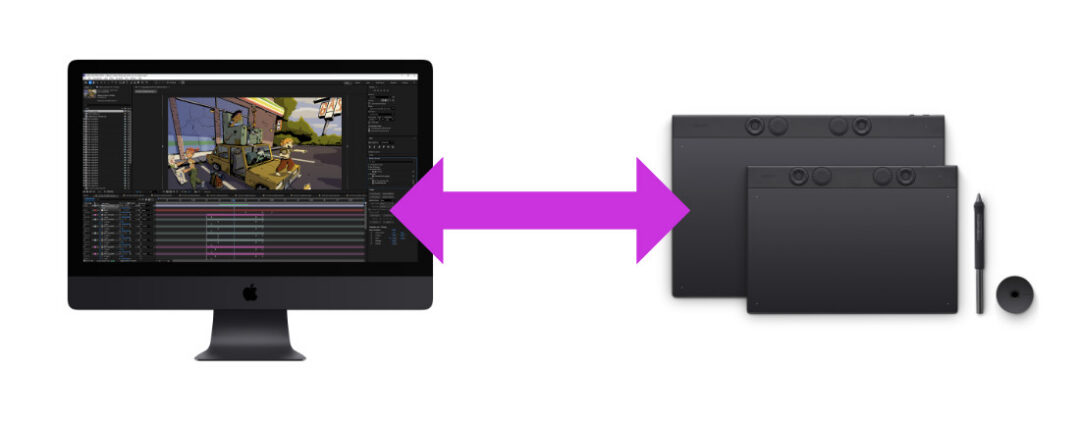
At its core, a driver is software that helps an external device, like a Wacom tablet, communicate effectively with your computer. For a lot of very simple peripherals, like mice and keyboards, drivers are built into your operating system. For more complicated devices, like printers, you often have to download a specific driver for that device.
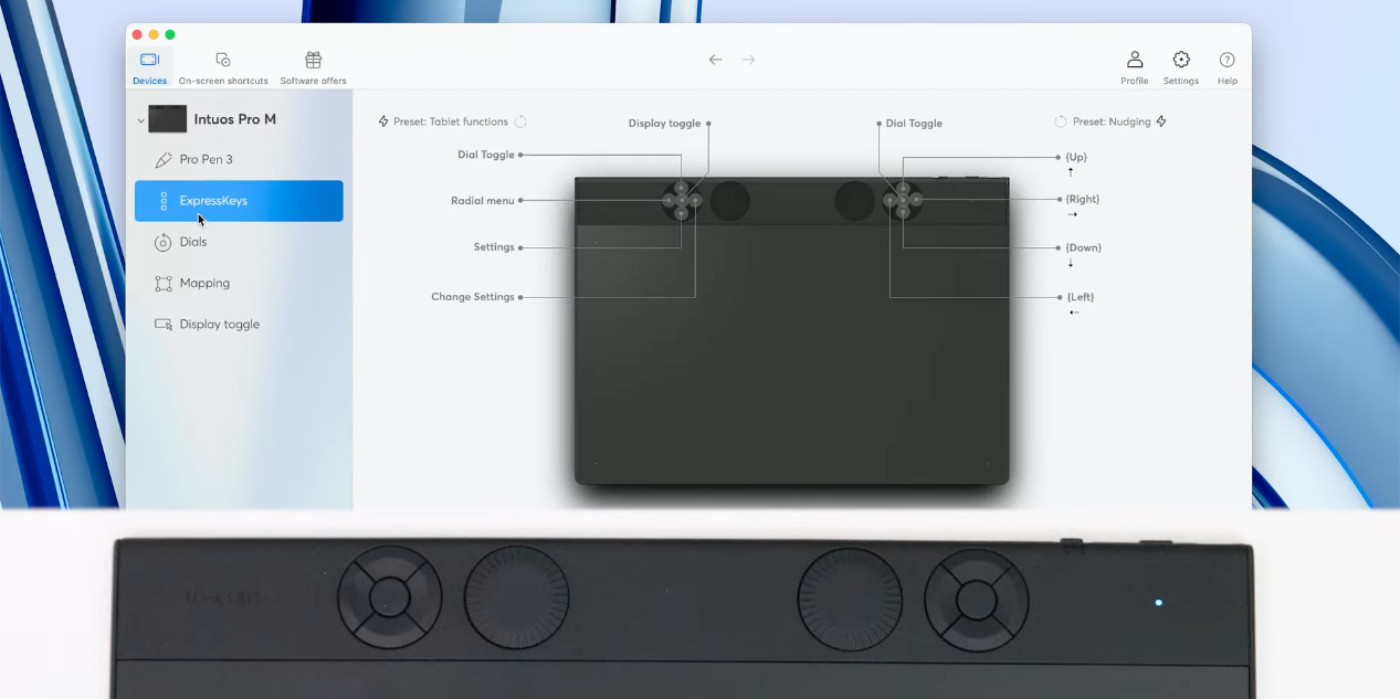
And for a very complicated device, like a Wacom creative pen tablet or pen display – complete with advanced technology for cursor placement, pressure sensitivity, pen tilt, touch and gesture controls, ExpressKeys on the device, customizable buttons on the Wacom pen, and much more – it’s important to have a well-engineered, comprehensive driver so that all of those different elements can work well with your computer, and be effectively customized to suit your own creative preferences.
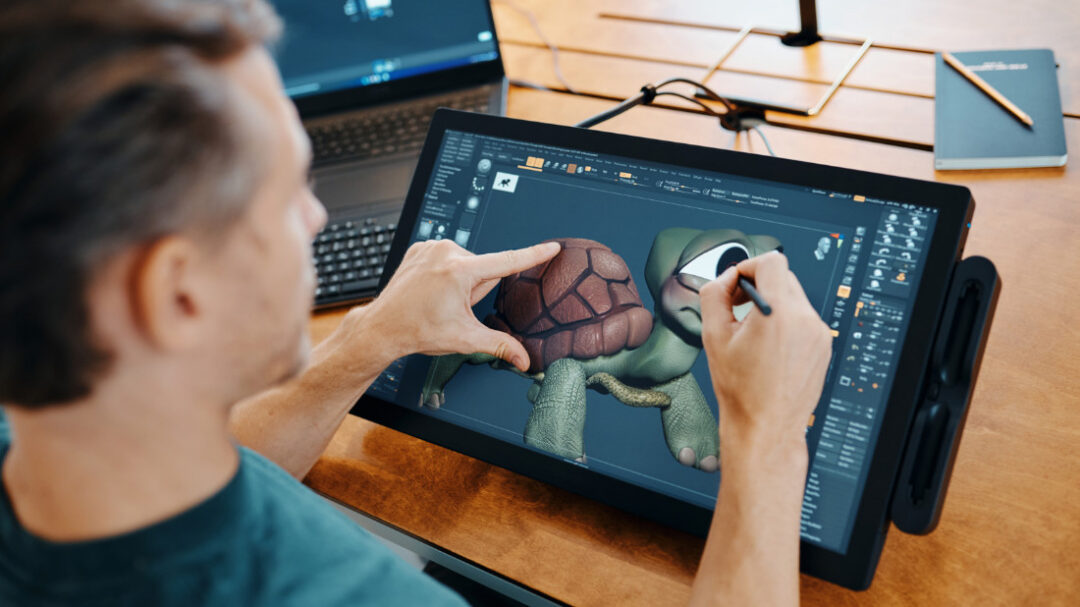
Wacom has built in the absolute best technology into its pens and tablets; that’s why so many professionals count on Wacom devices for their creative projects. The driver makes this communication between the device and your computer possible. But there’s so much more: if you want to adjust your pen pressure curve, change the keyboard shortcuts assigned to different buttons on your pen or device, adjust the active area or which monitor your device is mirroring, customize the gesture controls on your device, or essentially change anything about the way your Wacom device interacts with your computer and the software you’re using, the driver makes that possible. Here’s a short list of some of the things Wacom drivers make possible:
- Customizing pen settings
- Assigning ExpressKeys, dials, and pen buttons to keyboard shortcuts and application-specific adjustments
- Enabling on-screen shortcuts
- Toggling different display settings
- Utilizing preset settings groups
- And much more!
That’s another reason they need to be well-engineered, by the way – drawing tablets need to communicate well with both your operating system and with every individual software application you use on your computer, all of which work in different ways and are updated all the time with new features (which means new ways to communicate with your hardware).
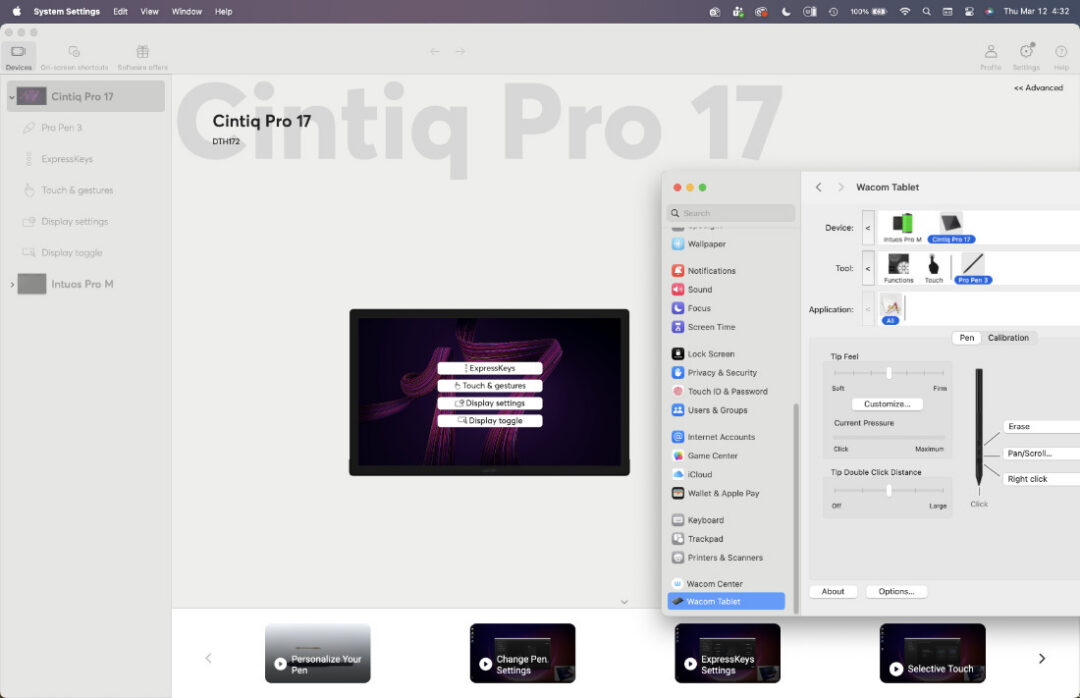
How do I use the Wacom driver?
When you’re first using a Wacom device on your computer, you’ll be prompted to download the relevant driver for your computer type and operating system (except in some cases, like if you’re using a One by Wacom pen tablet with a Chromebook computer). Then, to get everything connected and to start customizing your settings, you’ll open up and install the Wacom Center application on your computer.
Wacom Center is the home for your Wacom drivers. It’s where you can fine-tune nearly everything related to your Wacom pen tablet or display, and where you can find all kinds of features specific to Wacom drivers. There are a bunch of tips, tricks, and tutorials in there too, and it’s also where you can redeem any software offers that came with your Wacom device!
What can you do with Wacom drivers?
All digital input devices, like drawing tablets, have essentially the same function: you do something on the device with your digital pen, fingers, or by using ExpressKeys, and the driver translates that into input in the software that you’re using. It can be just that simple! But it can also be much more complex, and that’s where a well-engineered driver, like the ones created by Wacom – the company that essentially invented digital input technology and has been perfecting it for 40+ years – come in.
Wacom devices are known as the best in the business, and have been trusted by creative professionals across industries for decades because of their precision Japanese engineering and rugged build quality. But they’re also beloved because of their innovative feature sets, unmatched by competitors.
For example: did you know you can map touch input on your device to a separate monitor from pen input, so you can manipulate references on one monitor while working on another? 3D artist Pablo Muñoz Gómez breaks it down in the below video:
In fact, he created a whole series of videos outlining different tips, tricks, and features that rely on the Wacom drivers to do cool things. Check that playlist out here.
Wacom drivers make all kinds of unique and creative workflows possible. Another feature not too many people know about is the Grid Panels feature, which is great for Wacom pen displays like Wacom Cintiq, which don’t come with built-in ExpressKeys:
And that’s just the tip of the iceberg! Within Wacom Center – and hosted on Wacom’s YouTube channel, our social media accounts, and the Wacom Support website, there are tons of tips and tricks for making the most of your Wacom device.
Why are Wacom drivers considered the best in the digital art industry?
Wacom drives are often considered the best because the experience of using Wacom creative pen displays and drawing tablets is superior across the board: the devices are made of higher quality materials and have a rugged, long-lasting build quality, the pen-on-tablet feel is more natural, the precision and flow are accurate and intuitive, and the customer support is excellent. Not all of those aspects of using a Wacom device are driver-related, but many of them are! Here are a few of the reasons Wacom’s drivers get rave reviews:
- Excellent software application integration: Wacom has been working hand-in-hand with the best digital art software companies, like Adobe (Photoshop, Illustrator) and Celsys (CLIP STUDIO PAINT) for decades to optimize their applications for use with Wacom tablets. That means everything you customize in your Wacom driver should work exactly how you want it to in whichever software application you’re using.
- Better precision and pen-on-device feel: Wacom devices combine the best hardware – the IC chips and other technology in the pens and devices themselves – with the best software drivers for the most precise, most natural pen experience. That means less lag and parallax, a smoother pressure transition, and excellent accuracy.
- Deep levels of customization: Nearly everything can be customized on your Wacom device, from pressure curves to ExpressKeys to active area to multiple-monitor setup workflow adjustments – either across your entire workflow or in different applications specifically.
- Stability and support: Wacom drivers are known for being more stable, for being updated more quickly, and for offering better customer support if something does go wrong.